
How to use the Gamepad API in JavaScript
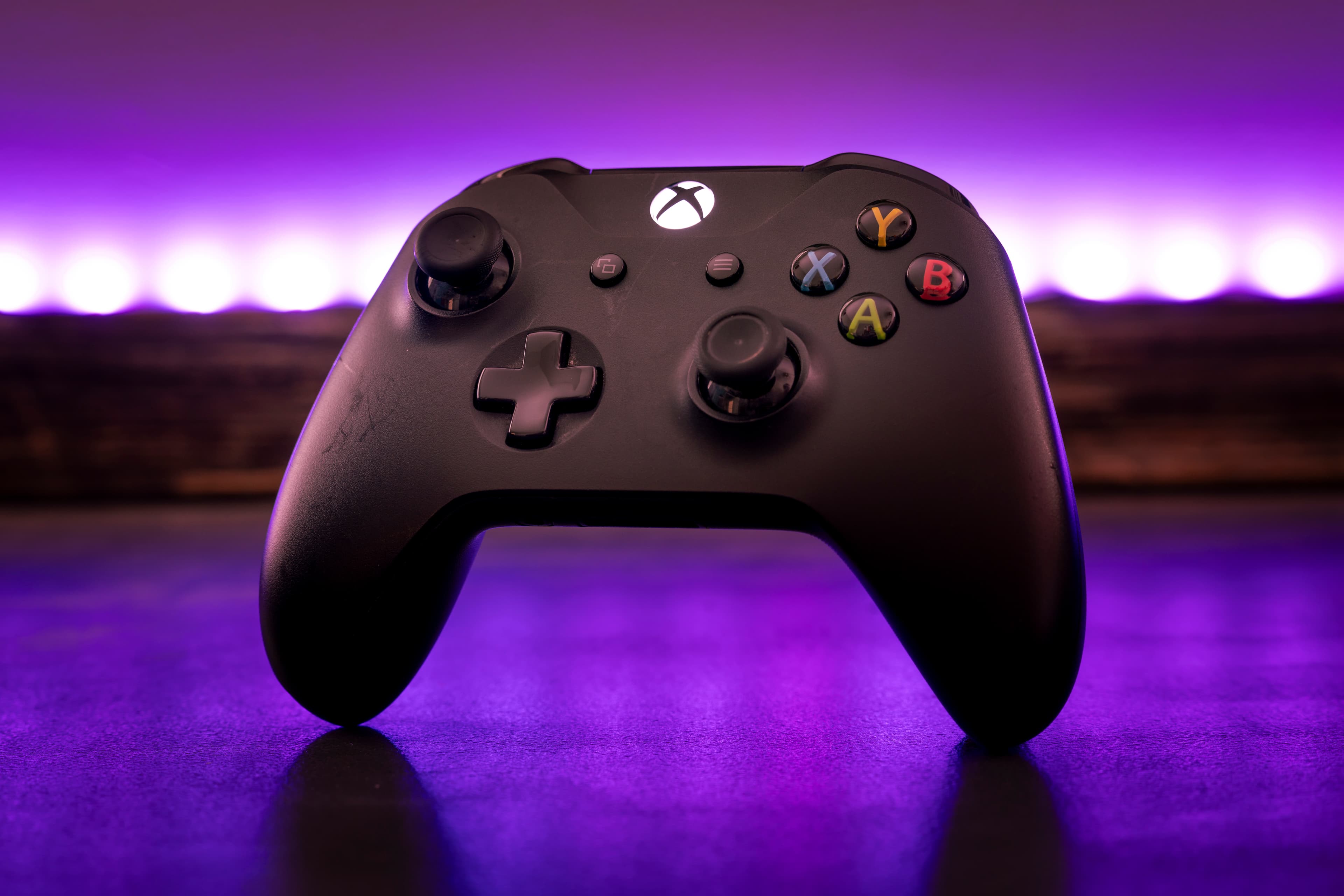
Go find a controller. The one under the TV, the one in the junk drawer, the one nobody admits to breaking. Plug it in or pair it over Bluetooth.
Now look at the box below. It doesn't see your controller.
Press any button on your controller to wake it up.
Turn on JavaScript to play with this demo.
Press any button.
There it is. A name, a mapping, 17 buttons, and four axes, all lit up and moving. Your browser knew that controller was there the whole time. It just wasn't going to tell this page until you touched it.
That's the browser's Gamepad API. It's built into Chrome, Edge, Firefox, and Safari, and this post walks through it in JavaScript: reading buttons and sticks, rumble, button mapping, and the tricks that make a jump feel fair.
Every demo on this site has a little gamepad badge on its corner. Today it finally earns it. And at the bottom of this post there's a whole level to play. Your controller is the key. (The keyboard works too. I'm not a monster.)
Why getGamepads() is empty until you press a button
A website that could list every controller plugged into your computer, the moment you arrived, would learn a lot about you without asking. That's fingerprinting, and the Gamepad spec shuts it down: navigator.getGamepads() returns nothing until you press a button or move a stick while the page is open.
So any page that wants a controller has to ask for a button press first.
Poll the controller with requestAnimationFrame
Most of the web works like a doorbell. You click, and the page gets a click event. You press a key, and it gets a keydown.
Controllers don't ring. There's an event when one connects and another when it disconnects, and that's it. There is no event for pressing a button. Instead, you take a picture of the whole controller, every frame, like a camera in burst mode:
function poll() {
  // A snapshot of every controller, right now
  const pad = navigator.getGamepads().find((p) => p?.connected)

  if (pad) {
    console.log(pad.buttons[0].pressed) // the bottom face button
    console.log(pad.axes[0]) // the left stick, left (-1) to right (1)
  }

  // Do it again on the next frame, about 60 times a second
  requestAnimationFrame(poll)
}

requestAnimationFrame(poll)
That ?.connected is there because getGamepads() doesn't hand back a list of just your controllers. In Chrome, it hands back eight slots, one for each controller it can track, and a slot with nothing plugged into it is null. Plug in one controller and you get the controller plus seven nulls. The ?. skips the empty ones.
Each button gives you two things: pressed, a yes or no, and value, from 0 to 1. On the face buttons, value is only ever 0 or 1. Pull a trigger slowly in the box up top, though, and watch its value climb through every number in between. The trigger knows how far you pulled it.
Make the controller rumble with vibrationActuator
Scroll back up to that first box and find the two Rumble sliders. Push Strong up, leave Weak at 0, and press Rumble. Then swap them.
Your controller has two motors with off-center weights. On an Xbox controller, the big one in the left grip spins slow and heavy: that's strongMagnitude. The small one in the right grip buzzes: that's weakMagnitude. Here's all it takes:
pad.vibrationActuator.playEffect('dual-rumble', {
  duration: 400, // milliseconds
  strongMagnitude: 0.6, // the big, slow motor
  weakMagnitude: 0.3, // the small, buzzy one
})
playEffect returns a promise that resolves with "complete" when the rumble finishes, or "preempted" if another one cut in first.
One catch before you build a game around it:
The standard gamepad mapping: which button is A?
On an Xbox controller, the bottom face button says A. On a PlayStation controller, it's a cross. On a Switch Pro controller, the button in that spot says B, and A is on the right.
The Gamepad API doesn't care what's printed on the button. When a browser recognizes a controller, it sets mapping to "standard" and lays out the buttons the same way every time:
| Index | Standard layout | Xbox |
|---|---|---|
| 0 to 3 | Bottom, right, left, and top face buttons | A, B, X, Y |
| 4, 5 | Left and right bumpers | LB, RB |
| 6, 7 | Left and right triggers (analog, 0 to 1) | LT, RT |
| 8, 9 | Select and Start | View, Menu |
| 10, 11 | Left and right stick presses | LS, RS |
| 12 to 15 | D-pad up, down, left, right | D-pad |
| 16 | Home | Xbox button |
Axes 0 and 1 are the left stick, and 2 and 3 are the right one. Up on a stick is negative, because screens count y from the top.
So label your buttons by position. "Press the bottom button to jump" works on every controller. "Press A to jump" is wrong for every Switch player.
When a browser doesn't recognize a controller, mapping is an empty string, and the buttons come in whatever order the device sends them. If yours shows up in the first box with mapping: "", that's why it has no button names.
Detect button presses and releases
A game needs to know more than "is the button down right now?" Jumping happens on the press, the one frame where the button goes from up to down. With no events, you work that out yourself: keep last frame's picture and compare.
for (const [i, down] of after.entries()) {
  if (down && !before[i]) pressed.push(i) // up last frame, down now
  if (!down && before[i]) released.push(i) // down last frame, up now
}
Once you know when a button comes up, you get one of the oldest tricks in platformers: variable jump height. Every jump starts at the same speed. If you let go while the ghost is still rising, its speed gets cut down to a slow float, and it tops out early. A tap is a hop. A hold is a full jump.
Try a tap, then a hold. Then turn variable height off and feel how stiff it gets:
Press the bottom face button, Space, or the box. Tap it, then hold it.
Turn on JavaScript to play with this demo.
Without variable height, every jump is the same arc no matter what your thumb does. It works, but it feels like the game isn't listening.
There's one more trap in that demo, and it's one I didn't see coming. Reload the page, and only use your controller. No clicks, no keys. Jump.
No sound.
Browsers won't play audio until a visitor clicks, taps, or presses a key on the page. The HTML spec lists exactly which input counts, and controller buttons aren't on the list. Mash them all you want. The page stays quiet until you touch the mouse or keyboard once.
That's why the level at the bottom asks for one click if it's playing silent.
Coyote time, jump buffering, and double jumps
Here's something you've felt in every good platformer without knowing it had a name.
You run off a ledge and press jump a split second too late. In real physics, you're falling, so no jump. In a good game, you jump anyway. That's coyote time, named after the cartoon coyote who runs off a cliff and hangs in the air until he looks down. The game keeps letting you jump for a moment after the ground is gone.
The opposite happens too. You're falling toward a platform and press jump a split second before you land. Strict physics says no, you're in the air. A good game remembers the press and jumps the instant you touch down. That's jump buffering.
Both windows are tiny. The level below uses 100 milliseconds for each, about six frames. You'll never notice them when they're there. You'll absolutely notice when they're gone.
Then there's the help everyone can see: the double jump. Press jump again in midair, and the ghost kicks off of nothing at all. Physics would like a word. In code, it's one counter. Landing fills it, a jump in the air spends it, and an empty counter means no more jumps. Trimmed from the level:
if (grounded) airJumps = 1

if (pressed && !grounded && airJumps > 0) {
  vy = -DOUBLE_JUMP_SPEED // negative is up, since y counts down the screen
  airJumps -= 1
}
Want a triple jump? Change that 1 to a 2.
The level has a switch for all three, and they all start off. Play it once like that. Then turn on coyote time and jump buffering and play it again. Then turn on double jump and watch the pits stop mattering.
Play a platformer with your controller
OK, I promised you a level.
Move with the stick or d-pad and jump with the bottom button (or use the arrow keys and Space). Grab the notes, stomp the static, and find the cassette tape.
Turn on JavaScript to play with this demo.
Everything in that level came from this post. The ghost walks on the left stick or the d-pad, and a thumb resting on the stick doesn't move it. It jumps on the frame the bottom button goes down, and letting go cuts the jump short. Stomp a crackle and the controller kicks. Fall in a pit and it kicks harder while the death music plays. Lose all three lives and it's back to the start, score and all. The music is a new tune on the four-channel chiptune player from my 8-bit sound effects post.
Did that last pit feel tight? It's 72 pixels wide, and a full jump at a run carries the ghost about 64. With the switch off, you have to jump in the last 8 pixels of the ledge, about four frames. Coyote time gives you another 11 pixels past the edge.
Cheat codes
- Ask for a button press first. Until then, the browser shows you no controllers at all.
- Poll every frame. There are no button events, so
requestAnimationFrameandgetGamepads()are the whole engine. - Label buttons by position. "Bottom button" is right on every controller; "A" isn't.
- Treat sound and rumble as extras. A controller can't unlock audio, and not every browser can rumble.
The demos, level and all, are about 1,300 lines of TypeScript with no dependencies, in components/islands/demos/how-to-use-the-gamepad-api/.
Thanks for reading, go press start!